
Anti-tamper settings
Please complete the settings below on your child's device to prevent Mobile Fence from being deleted or stopped.
1. Enable 'Block Settings' Rule
If access to system settings is allowed, your child can stop the Mobile Fence service or revoke essential permissions at any time. Therefore, you must block access to the settings menu.
Failure to block settings may cause issues such as "incorrect usage time, monitoring errors, inability to locate the device, excessive usage beyond allowed time, or app deletion." In such cases, you must reinstall the app to restore permissions.
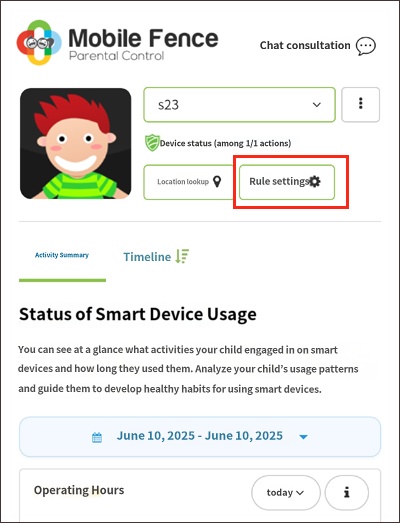
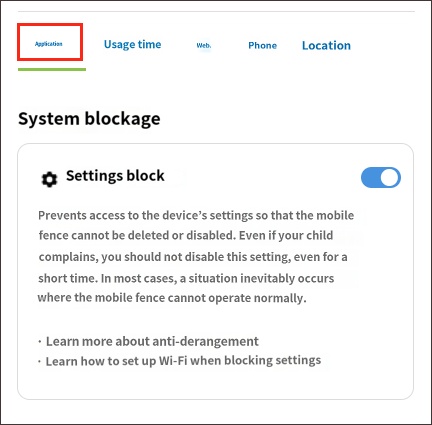
• Related article: How to set up Wi-Fi when Block Settings is enabled
2. Block Safe Mode
Safe mode is a troubleshooting mode that runs only basic apps when booting the device. It is generally accessed by holding the volume down (-) button during boot. In this mode, the Mobile Fence app does not function, posing a risk that the child could delete the app or revoke permissions.
To prevent access to Safe Mode, please configure the blocking feature as follows:
2) Device Settings → MDM Agent → Click 'Turn On'
3) Block Safe Mode → Click 'Turn On'
1) Launch the Mobile Fence app on the child's device → Click 'Parent Mode' button → Log in
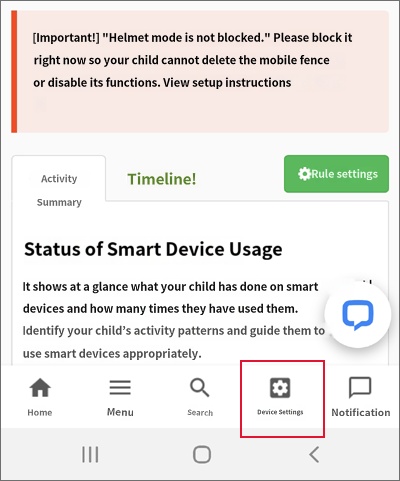
2) Device Settings → MDM Agent → Click 'Turn On'
3) Block Safe Mode → Click 'Turn On'
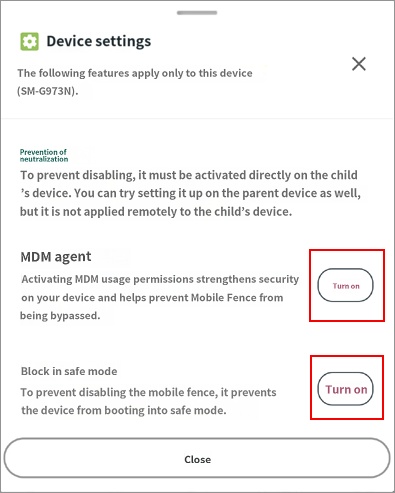
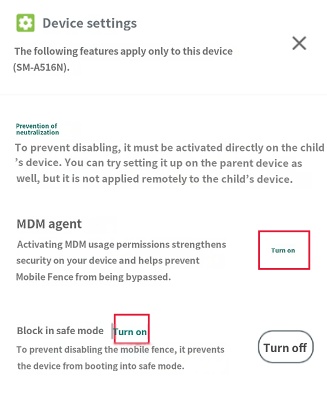
For LG devices, an add-on will be installed when clicking the MDM Agent. Please refer to this guide for installation instructions.
3. Block Factory Reset (Optional)
A factory reset deletes all data and installed apps on the device. To prevent your child from using this to bypass Mobile Fence, please use the "Block Factory Reset" feature.
How to set it up:
1) Launch the Mobile Fence app on the child's device → Click 'Parent Mode' button → Log in
2) Device Settings → Block Factory Reset → Turn On
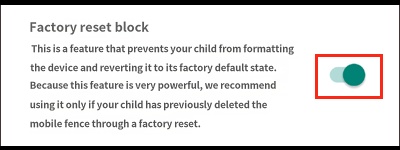
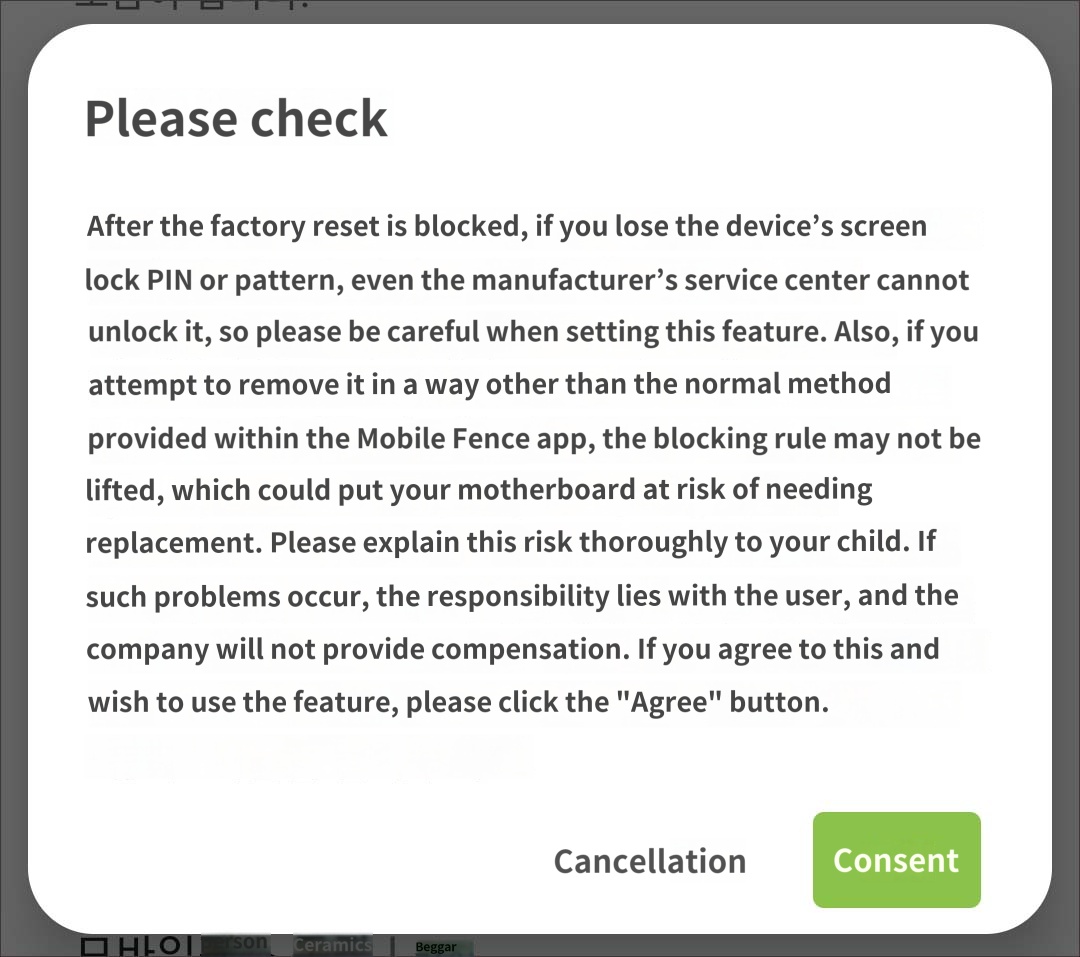
This feature is extremely powerful; if you lose your password (PIN/pattern), even service centers cannot unlock the device. In such cases, the device's mainboard would need to be replaced. Please make this decision carefully after confirming your child's attempts to delete the app.
4. Exclude from RAM Management (Optional)
Mobile Fence is designed to operate normally even during RAM optimization. However, if activity monitoring is not smooth, please add the Mobile Fence app to the exclusion list in your device's RAM management settings.
http://mobilefence.com/kms/18749382
Some Samsung devices may not support the Knox technology required to enable Safe Mode blocking. Please check the list of supported devices at the link below:
https://www.samsungknox.com/ko/knox-platform/supported-devices

