뒤로
Change LG device settings view style to 'List view'
Last updated :
On some LG models, if the settings view style is set to 'Tab view', users can access other setting tabs using the 'Display settings' and 'Sound settings' buttons from the Mobile Fence child mode screen, potentially disabling Mobile Fence app functions.
To prevent this, you must change the settings view style on the child's device from 'Tab view' to 'List view' as follows.
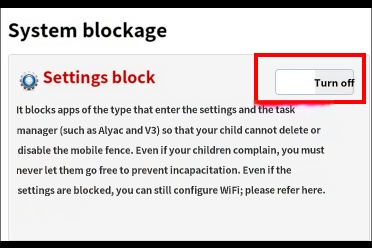
Before proceeding, please go to your parent device and set "Child Profile → Rules Settings → Block System Settings → Off".
1. Log in to the Mobile Fence app.
2. Go to Child's Rules Settings → Apps tab → Block System Settings → Off.
3. On the child's actual device, go to [Settings → Three-dot button at the top right → Select 'List view'].
4. Go to Child's Rules Settings → Apps tab → Block System Settings → On.
2. Go to Child's Rules Settings → Apps tab → Block System Settings → Off.
3. On the child's actual device, go to [Settings → Three-dot button at the top right → Select 'List view'].
4. Go to Child's Rules Settings → Apps tab → Block System Settings → On.
1) Access 'Settings' on the child's device → Click the More (three-dot) button.
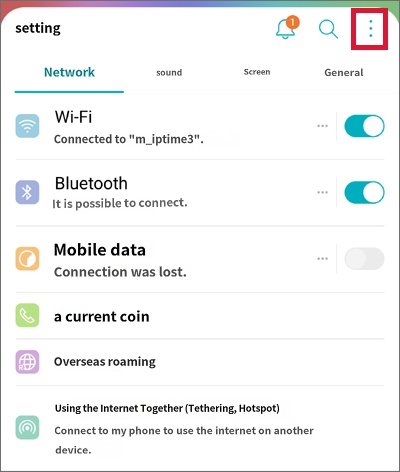
(Screen set to 'Tab view')
2) Click 'List view'.
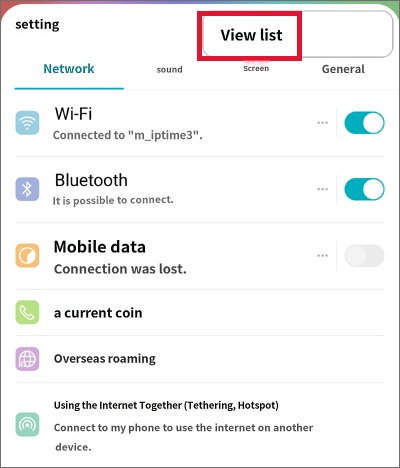
3) Changed to 'List view' state.